
Any to Any product exchange enables customers to perform product exchanges by using the value of their returned items as exchange credits to select any number of new products in the return portal.
This differs from traditional one-for-one exchanges by enabling customers to choose multiple new items instead of being limited to a single replacement item.
In-portal exchanges are supported in the Classic Portal only, which will be deprecated soon. Learn more about the Edge Portal product exchange flow.
Limitations
Any to Any product exchanges don't support the following:
- Buy X Get Y (BxGy)
- Free variant exchange range setting
- This setting only applies to variant exchanges, not to product exchanges, as there is no one-to-one price difference calculation in product exchanges
If you are using BxGy or a custom exchange flow and want to enable Any to Any exchange, please contact ReturnGO support for manual activation.
How Any to Any Exchanges In-portal Work
The product exchange flow works in the following way: Customers can select any number of new items using the value of their returned items as exchange credits.
Here’s how product exchanges work:
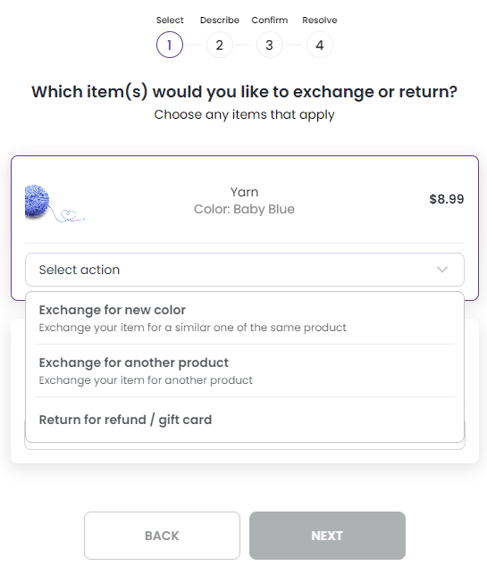
1. Customers select the item(s) they wish to return.
2. Select whether they want a refund, a variant exchange, or a new product exchange, according to your return policy.
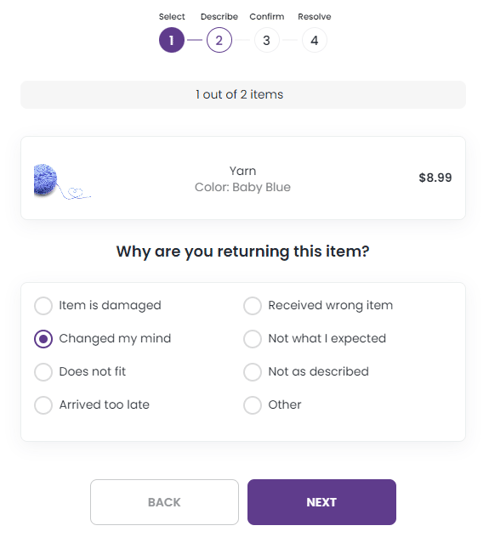
3. For each item, customers choose a reason for the return.
4. If the customer requested a product exchange or opted to switch to an exchange, customers can then use their available exchange credits to select any number of new items. The customer will need to:
a. Select new items on the product exchange page.
b. Click the ADD TO CART button.
c. Customers can adjust quantities using the quantity slider for each new product.
d. After selecting new items, a cart icon will appear.
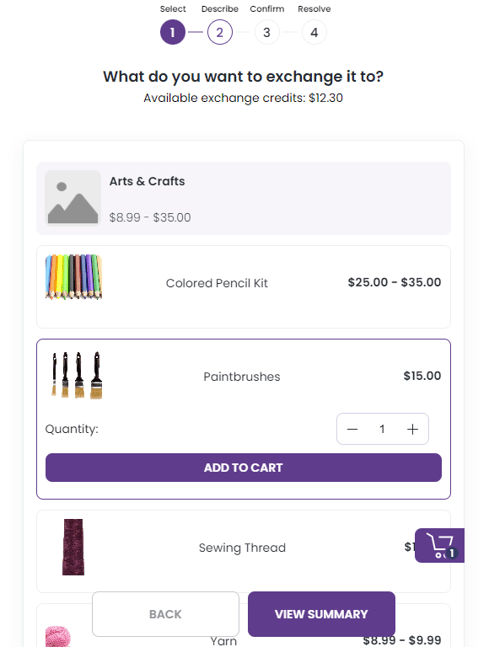
e. Customers can click the cart icon to view all selected items.
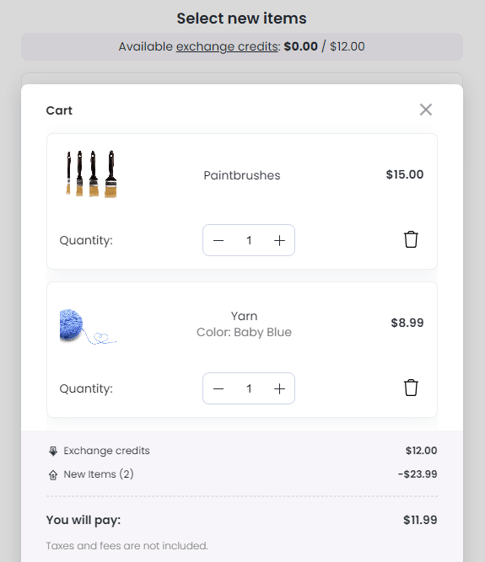
5. After selecting all the desired items, customers proceed to the summary screen to finalize the transaction.
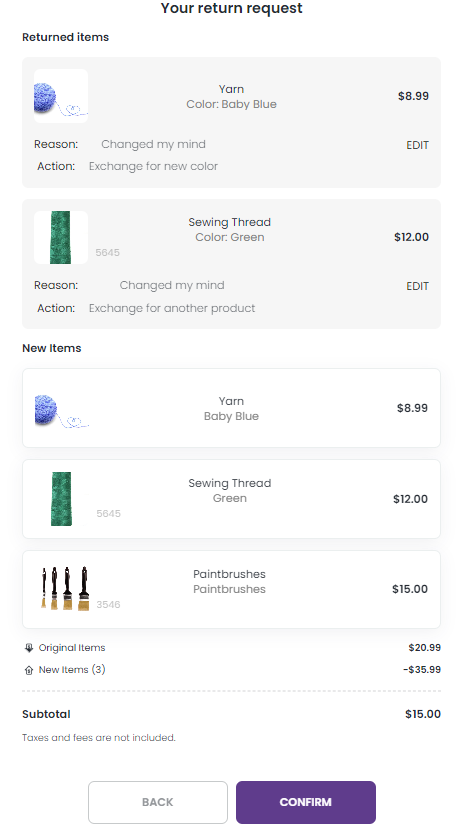
6. The customer will receive a refund for the remaining credits or pay the balance if the new selection exceeds the available credits.
.png?width=486&height=635&name=Any%20Portal%207%20(1).png)
Browse by Collection
For in-portal product exchanges, in addition to letting customers search for specific products, you can also offer customers to browse through your product collections directly on the return portal.
Customers often aren't sure what new products they want during a product exchange, so it's helpful to give them the option to browse your store's collections as part of the exchange process.
By enabling customers to browse by collection, you can give customers an experience that’s closer to a regular shopping experience, providing a better user experience that can help convert more returns into exchanges.
To enable browsing by collection:
- Go to Settings > General.
- Open the Exchanges section.
- In the Product Exchange section, toggle Browse by Collection to let customers browse your collections in the portal when choosing their exchange item.
- Enter the titles of the collections you want to display to customers in the return portal.
- Click on the save icon to save your changes.
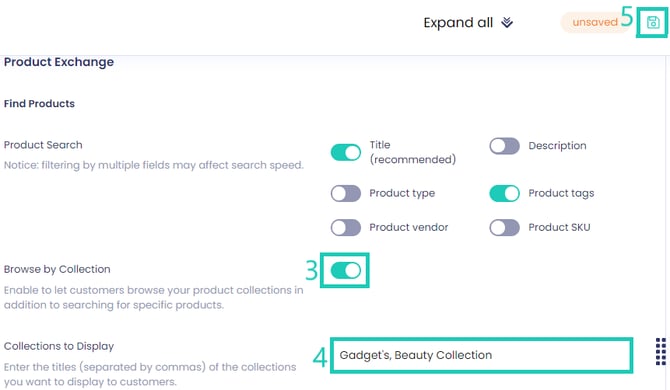
Note: The collections will be displayed on the return portal in the order they are inputted in the settings.
Hide Collection Images in Product Search
If you're using Browse by Collection in product exchanges and don't want to set/show a collection image on your eCommerce store, you can hide the collection images through advanced customization.
To hide collection images on the portal, add the following lines of custom CSS on your ReturnGO dashboard:
#returnGoAssistant .ReturnGO_CollectionListItem-module_listItem img {

    display:none

}