
This article covers the legacy Auto-Mark as Done feature, which will be replaced by the new version. Learn more about the updated feature here.
Auto-mark as done is a policy rule setting that automates marking a return request as Done.
ReturnGO considers RMA processing complete when all configured conditions across the applicable policy rules are fulfilled.
If any item included is set to be manually marked as done, then the entire RMA will need to be manually marked as done.

What Triggers the Auto-Mark as Done Automation?
Auto-mark as done is triggered when all the customer’s requests in the RMA are fulfilled. The trigger depends on the actions expected from the resolutions applied in the RMA.
These possible actions are as follows:
1. If all the resolutions are variant/product exchanges, Auto-mark as done is triggered once the draft order is marked as Released.
Note: This only applies if all the conditions below are fulfilled:
i. There is a price difference.
ii. The customer paid the price difference.
iii. The draft order was marked as Paid.
2. If all the resolutions are the same refund type, Auto-mark as done is triggered once the refund issued is equal to or greater than the balance.
Note: The balance is calculated by the formula:
Balance = (Total paid price + Rewards) - Fees
3. Auto-mark as done can be applied to mixed resolutions.
Requirements
This feature is available as an add-on.
Enabling Auto-Mark as Done
To enable auto-mark as done:
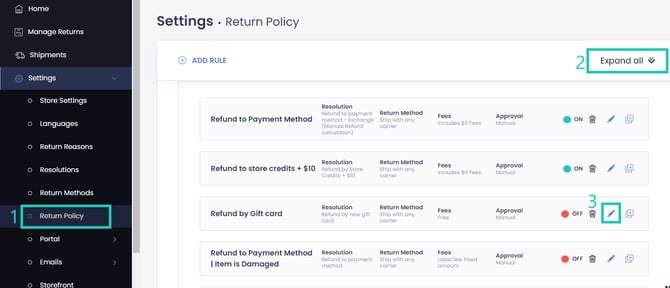
- Go to Settings > Return Policy.
- Click EXPAND ALL to configure an existing policy rule.
- Click the pencil icon on the right of the policy rule to configure.
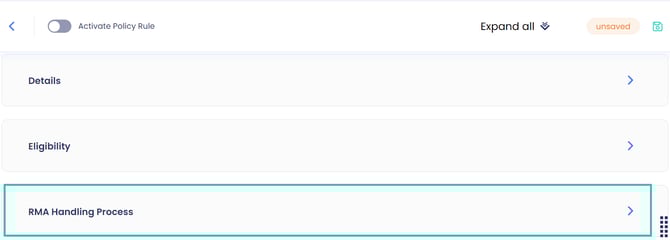
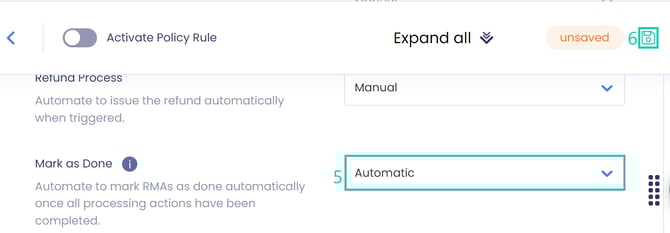
5. Choose AUTOMATIC in the Mark as Done setting.
6. Click on the save icon to save your changes.
Note: Repeat steps 3 to 6 for each policy rule you want to set to mark-as-done.
Auto-Mark as Done After Partial Validation
This setting marks RMAs as done once all actions are completed, even if not all items have been positively validated. The automation is triggered once all items in the RMA have a validation status, regardless of whether the result is positive or negative. It’s useful when no further action is expected on the RMA.
For example, if one item is marked as not returned and another was returned but isn’t restockable, the automation will be triggered once all items in the RMA have been validated. This ensures that the RMA is marked as done, even if some items were negatively validated, as long as no further actions are required.
This setting helps keep your workflow clean by preventing incomplete or inactive returns from remaining open unnecessarily.
To enable Auto-Mark as Done After Partial Validation:
- Go to Settings > Return Policy.
- Click EXPAND ALL to view all policy rules.
- Click the pencil icon next to a policy rule.
- Open the RMA Handling Process section.
- Set Mark as Done to AUTOMATIC.
Note: This setting is disabled by default and must be enabled per policy rule.
6. Enable Mark as Done After Partial Validation toggle.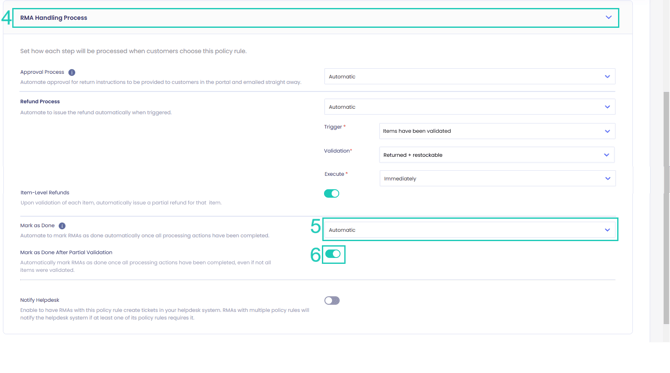
7. Click the save icon to save your changes.