All of the text displayed in your return portal and emails can be edited and translated so that you can provide a consistent branded experience throughout the returns process.
Capabilities
ReturnGO enables you to easily edit and translate all of the text that appears on your return portal, as well as in emails that are sent to customers.
This enables you to provide a more personalized experience for your customers, using language that aligns with your brand's messaging and tone and is in the customer’s preferred language.
Setting the Return Portal and Email Language
When setting up your return portal, you can select the specific languages that you want to make available to your customers. By default, the portal's language is automatically set based on the store language.
Emails that are sent to the customer will be automatically set to the language that was selected on the portal, ensuring that your customers receive all communications in the language that they are most comfortable with. You can change the default portal language and which languages are offered.
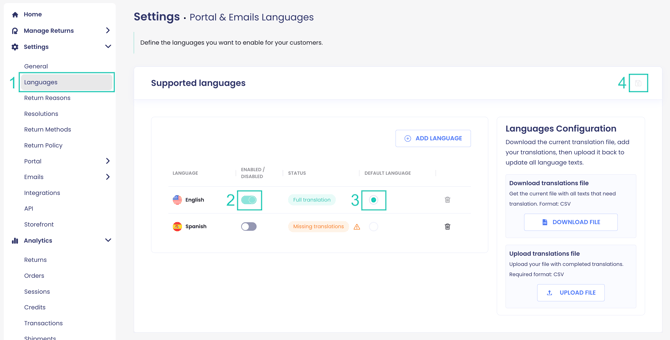
To set the language displayed on your return portal and emails:
- Go to Settings > Languages.
- Choose the language and toggle the button to enable it.
- Choose which language to set as the default language.
- Click on the save icon to save your changes.
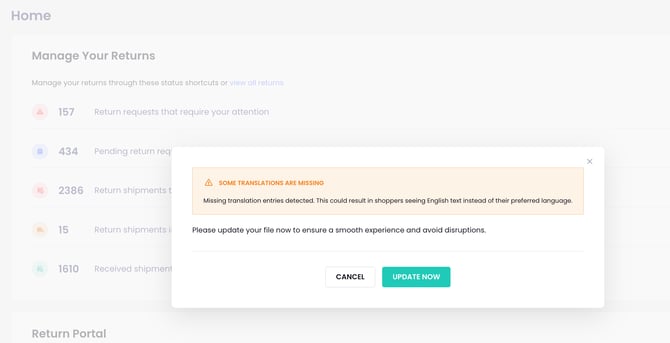
Note: If an enabled language has missing translations, a Missing Translation pop-up will appear. To resolve this, click UPDATE NOW and ensure that all enabled languages have their translations completed.
Adding a Return Portal and Email Language
You can add a new language to your return portal and emails. ReturnGO provides languages with default translations, which will be used in your return portal and emails when relevant.
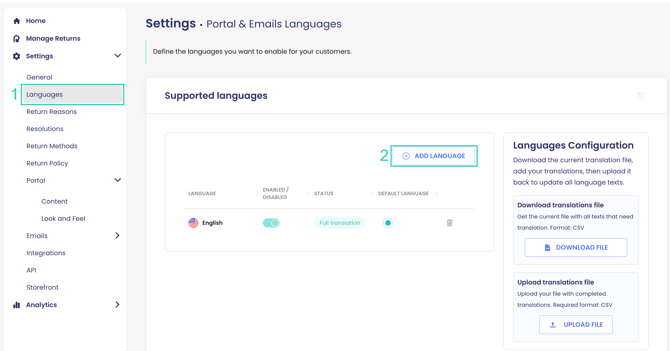
To add a new language to your return portal and emails:
1. Go to Settings > Languages.
2. Click ADD LANGUAGE.
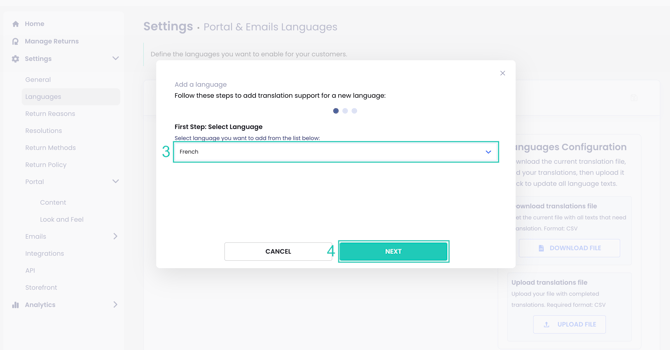
3. Select a language from the dropdown.
Note: Languages available in the dropdown include default translations. You can update the existing translations or add anything that is missing.
4. Click NEXT.
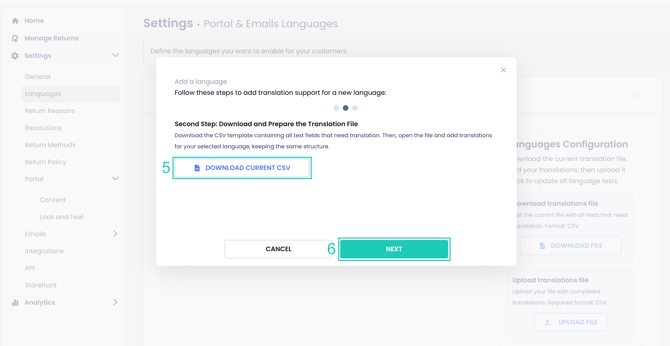
5. Click DOWNLOAD FILE to download the CSV template containing all text fields that need translation.
-
Open the file and add translations for your selected language, keeping the same structure.
6. Click NEXT.
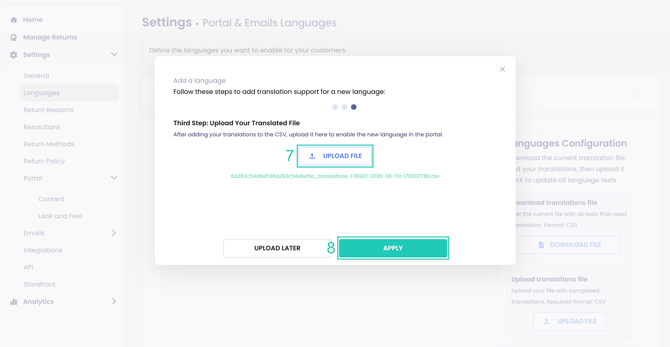
7. Click UPLOAD FILE to upload your translated CSV file.
8. Click APPLY.
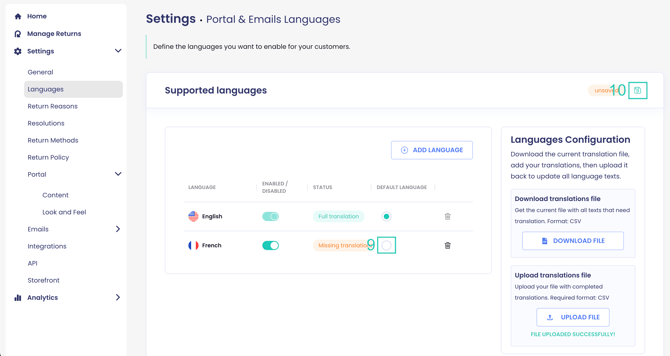
9. Enable the new language in the portal.
10. Click the save icon to save your changes.
Editing Portal Text Through the ReturnGO Dashboard
You can edit certain portal texts directly in the ReturnGO dashboard. The sections available for editing in the dashboard are Locate Order, Policy Confirmation, and Refund Methods.
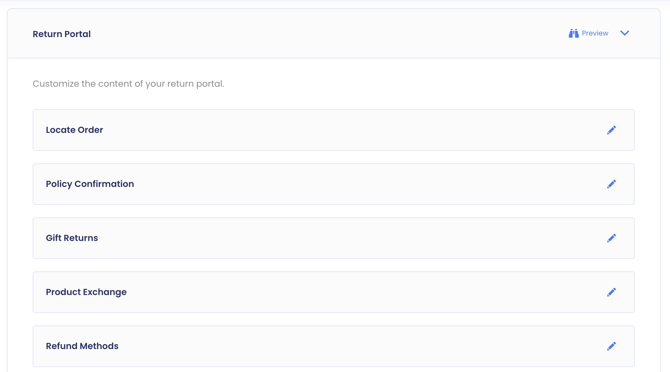
To edit portal texts in the dashboard:
- Go to Settings > Portal > Content.
- Open the Return Portal section.
- Locate the section you want to update.
- Edit the fields as needed.
- Click on the save icon to save your changes.
Note: The product exchange flow now redirects customers to your storefront to select new items, so the in-portal product exchange screen is no longer displayed. The text fields under Settings > Portal > Content > Product Exchange no longer have any effect.
The gift returns portal text can only be updated via the CSV file.
Editing Text and Translations in Bulk
ReturnGO enables you to download all customizable texts for editing and translation in bulk using spreadsheet software such as Excel or Google Sheets.
This can be useful when you need to edit texts for multiple languages for your store’s return portal.
1. Go to Settings > Languages.
2. Click DOWNLOAD FILE to download the CSV file containing your current texts. 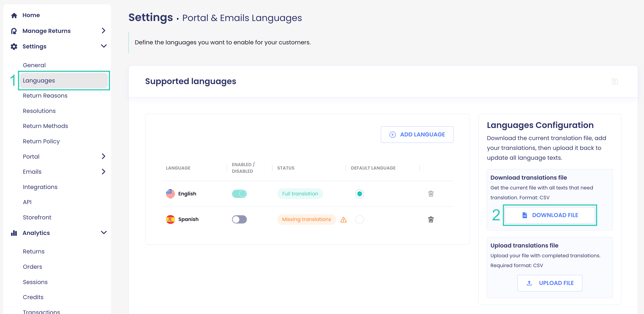
3. Save the CSV file to your computer.
4. Open the CSV file on your computer using any spreadsheet software (e.g. Excel or Google Sheets).
5. Edit the text in the CSV file.
Note: If you're editing an RTL language column in the CSV file and emails are showing a variable name instead of its value (e.g., :RMA_id instead of the actual RMA ID), move the colon to the other side of the variable name (e.g., change :RMA_id to RMA_id:).
6. Save the edits you made in CSV format.
7. Click UPLOAD FILE to upload the CSV file with your completed translations.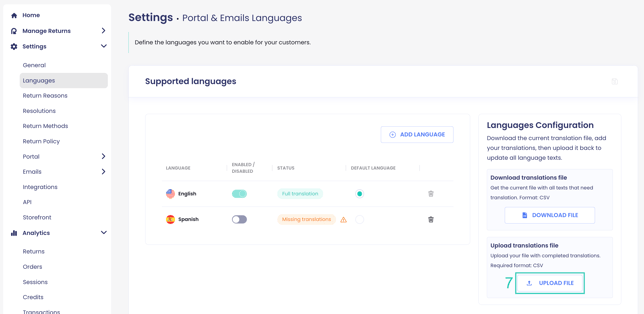
Note: Changes to the text may take up to 24 hours to apply.
Editing Return Portal Texts and Translations
You can customize the texts that appear in your return portal.
Note: Customizing text via the Portal > Content page is currently not supported for the Edge portal.
The translations file is the single source of truth for all Edge Portal texts. Modifying the CSV file is the only way to customize text and add translations, and all texts included in the file are displayed on the Edge Portal.
To edit texts or add translations that are displayed in your return portal:
1. Go to Settings > Languages.
2. Enable all relevant languages before downloading the CSV file.
3. Click DOWNLOAD FILE.
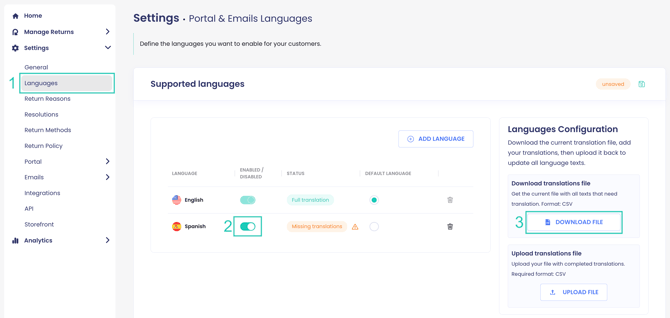
4. Edit the texts in the CSV file and add text to each language column.
Tip: Use CTRL + F to search for the text in the portal that you want to edit.
5. Save the file in CSV format.
6. Click UPLOAD FILE to import the file.
Editing Email Notification Texts
To edit texts that are displayed in email notifications your customers receive:
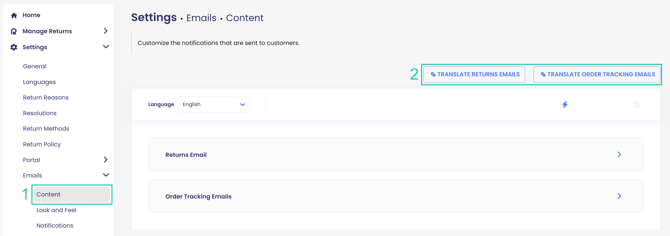
1. Go to Settings > Emails > Content.
2. Click TRANSLATE RETURNS EMAILS or TRANSLATE ORDER TRACKING EMAILS.
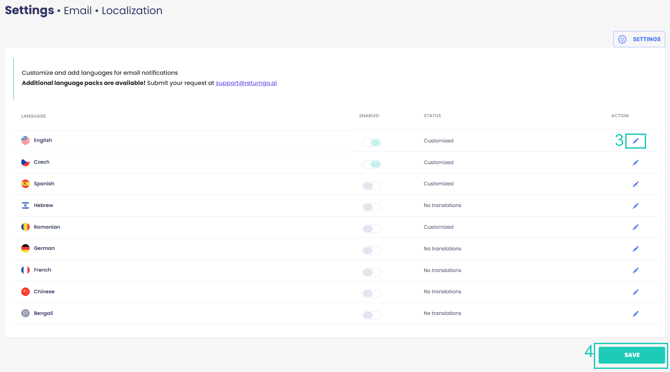
3. Click the pencil icon of the language you want to edit.
Tip: Use CTRL + F to help you find the text you want to edit and make the relevant changes.
4. Click SAVE.
Storefront Localization
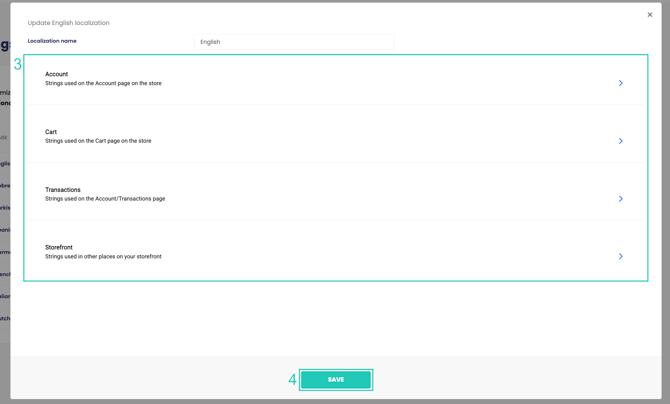
ReturnGO also enables you to customize and add languages for your storefront panels to ensure that all customer-facing panels on your storefront are consistent with your selected languages and your brand messaging.
To customize your storefront texts:
-
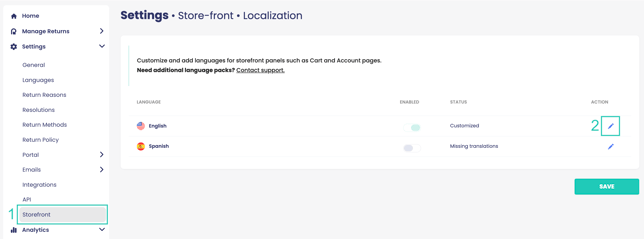
Go to Settings > Storefront.
-
Click the pencil icon of the language you want to customize.
-
Update the fields as necessary for the following sections:
-
Account: Strings used on the Account page.
-
Cart: Strings used on the Cart page.
-
Transactions: Strings used on the Account/Transactions page.
-
Storefront: Strings used in other places on your storefront.
-
4. Click SAVE.