
ReturnGO integrates with HFD to help you manage your return shipping.
HFD is an Israel-based shipping carrier that is available only to stores based in Israel.
Requirements
To set up HFD in ReturnGO, you will need:
- An active account with HFD
- Your ReturnGO API key
- Your store name
Setting Up Return Method for HFD
The return method name must be entered exactly as shown below. HFD uses this name to identify your returns when making API calls, so any change to the spelling will prevent the integration from working.
To set up a return method for HFD:
- Go to Settings > Return Methods.
- Open the Ship with any carrier section.
- Click on ADD RETURN METHOD.
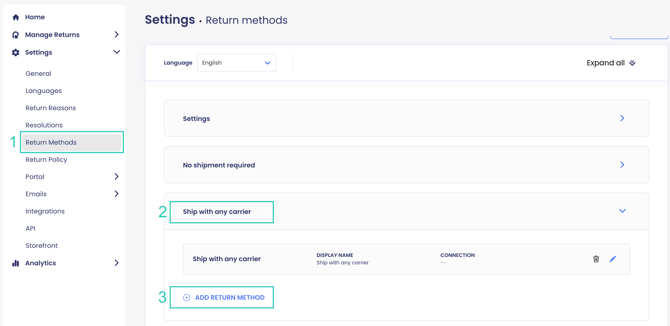
- Enter HFD in the Display Name field.
- Enter Your return will be picked up by an HFD courier. in the Display Description field.
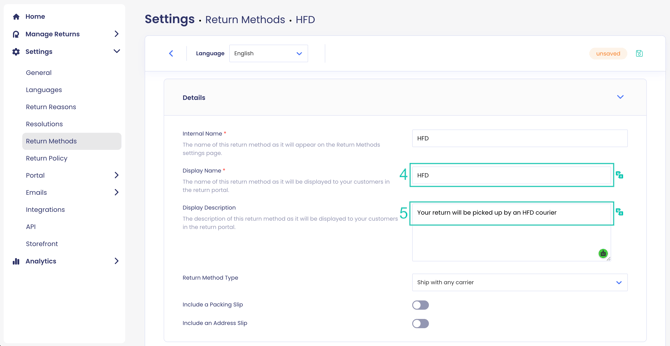
- Open the Return Address and Restocking Location.
- Set the Default Restocking Location to your warehouse address.
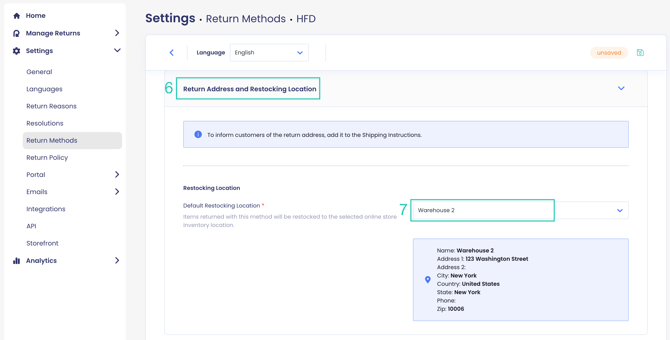
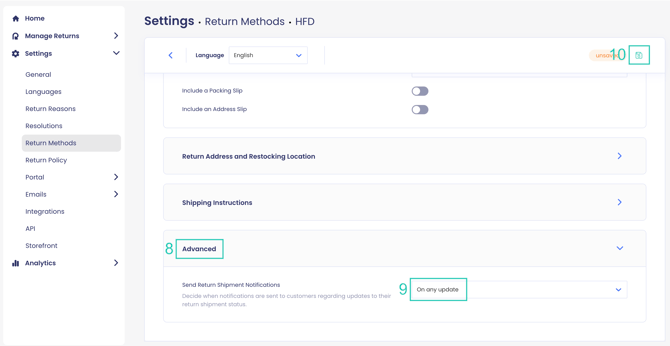
- Open the Advanced section.
- Set Send Return Shipment Notifications to on any update.
- Click on the save icon to save your changes.
Tip: If you also offer exchanges, repeat these steps to create a second return method and name it EXCHANGE_HFD.
Setting Up Return Policy Rule for HFD
Once your return method is ready, create a policy rule so customers can select HFD in your return portal.
To set up a return policy rule for HFD:
- Go to Settings > Return Policy.
- Click on ADD RULE.
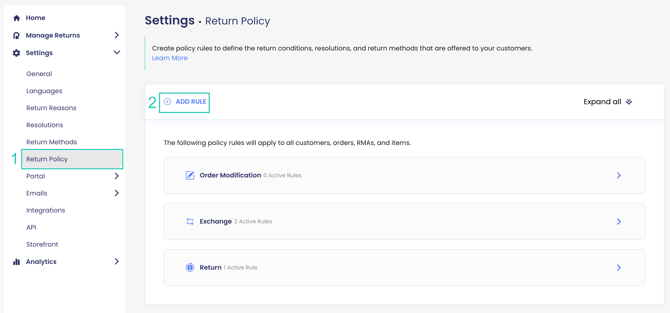
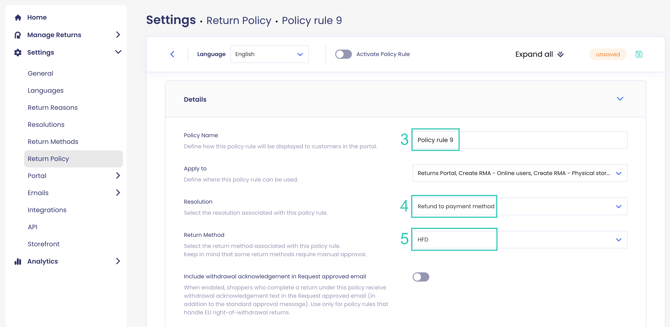
- Enter a Policy Name.
- Select a resolution from the Resolution drop-down, as defined in your Resolutions settings.
- Set Return Method to HFD.
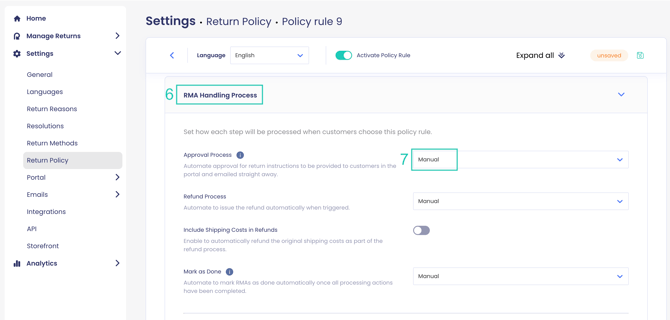
- Open the RMA Handling Process section.
- Set Approval Process to manual.
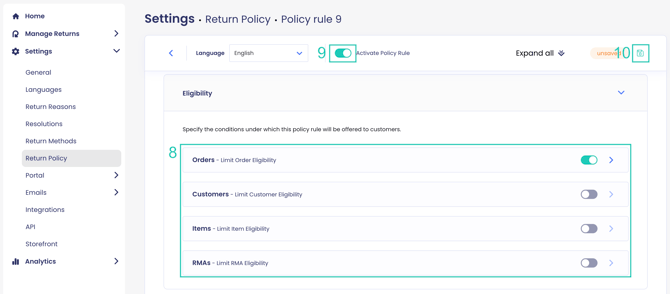
- Set your eligibility conditions, such as items, customers, and time window, according to your return policy.
- Enable the Activate Policy Rule toggle.
- Click on the save icon to save your changes.
Tip: If you also offer exchanges, create a second policy rule with an exchange resolution and set Return Method to EXCHANGE_HFD.
Completing the Connection With HFD
After both the return method and the policy rule are set up, contact HFD to finalize the connection.
To complete the connection:
- Go to Settings > API.
- Copy your API key.
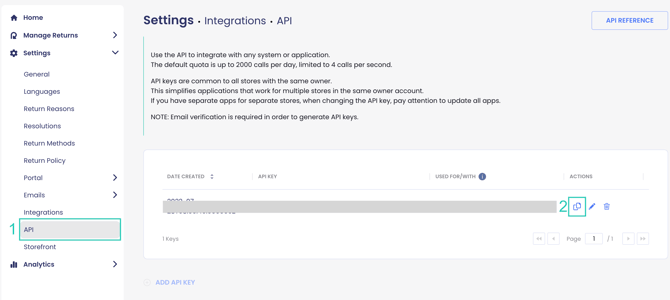
- Send your API key and store name to HFD. Your store name is your Shopify store URL, for example demo-store.myshopify.com.
- Wait for HFD to confirm that the integration is live.
Note: Your setup in ReturnGO is only part of the connection. The integration goes live once HFD finalizes it on their end.
Troubleshooting the Integration
Most issues with this integration come from the setup in ReturnGO not matching what HFD expects.
- Returns are not reaching HFD. Check that your return method is named exactly HFD, with no extra spaces or changes to capitalization. The same applies to EXCHANGE_HFD for exchanges.
- The HFD option does not appear in your return portal. Check that your return policy rule is active and that its eligibility conditions match the return the customer is requesting.
- Shipment updates are not being sent. Open the Advanced section of your return method and confirm that Send Return Shipment Notifications is set to on any update.
- HFD-related issues. For anything HFD configures on their side, contact HFD support.